Sunday, April 12, 2026

How To Connect Squarespace Domain To Blogger Blogspot 2026

How To Connect Squarespace Domain To Blogger Blogspot 2026


πŸ‘€ After hours of searching online for how to connect the Squarespace domain to the Blogger Blogspot, it dawned on me that I could see how I had connected my older blogs to Squarespace. "HELLO." Lol 🀣. 

Previously, I was using Google Domains, but their services are no longer available, so Google migrated the domains to Squarespace.

To easily connect your custom domain from Squarespace to Blogger, follow the steps below.

πŸ‘‰ First, open the Blogger Blogspot dashboard. Scroll down to settings, click on settings, scroll down until you see PUBLISHING, click on CUSTOM DOMAIN, and hold it right there.

scroll down until you see PUBLISHING, click on CUSTOM DOMAIN

πŸ‘‰ Second, open a new tab on your browser and go to SQUARESPACE, where you purchased your custom domain for Blogger Blogspot, right-click & copy your custom domain, and take it over the Blogger dashboard custom domain, and right-click and paste the custom domain in Blogger.
It will display an error message, a red text prompt to add www to your Blogger custom domain area, and save it once you have added the www. View the images below πŸ‘‡.


πŸ‘‰ Third, then, in the Blogger custom domain area, it will give you another red text like the picture described below πŸ‘‡πŸ‘‡πŸ‘‡and hold it right there. Go to Squarespace. The text circled & squared is the code you will need to add to Squarespace as a custom record. Remember, this is my code. You will get your own unique code in Blogger. This is an example. Log in to Squarespace here.

How To Connect Squarespace Domain To Blogger Blogspot 2026

πŸ‘‰ Fourth, go to Dashboard Squarespace and click on DOMAIN, click on DNS, you will see ADD PRESET until you see ADD RECORD, and this is where you will add the highlighted code from Blogger. Remember, this is my code; I am just showing you as an example here. 


πŸ‘‰ Fifth, to ADD RECORD in Squarespace, click on TYPE and choose CNAME. Right next to TYPE is NAME, and put this >>> _domainconnect in DATA, and put this >>> _domainconnect.domains.squarespace.com. As shown in the pic above πŸ‘†. This code you may use is universal.

πŸ‘‰ Sixth, you are going to add another ADD RECORD in Squarespace, click on TYPE and choose CNAME, right next to TYPE is NAME, you put www, and in DATA, you add your custom domain, and this code right after it >>> .ghs.googlehosted.com


πŸ‘‰ Last step: click on ADD RECORD in Squarespace, click on TYPE, and choose CNAME. Right next to type is NAME, and put the code that the Blogger gave you is illustrated in the pic above. The code illustrated is mine, it's just an example... And in DATA, you add the second code Blogger gave you... Read, read, and follow the steps... 

Give Blogger and Squarespace to connect the custom domain you purchased for about 10 - 20 minutes, and then refresh your website and walaaa...

Any questions, leave comments in the comments section. I will be more than happy to help!

Thank you for visiting,
Read More »

Sunday, July 17, 2022

How To Integrate AddThis Share Button To Your Blogger Site And More - 2022

How To Integrate AddThis Share Button To Your Blogger Site And More - 2022

AddThis IS RETIRED❗

Follow the step-by-step integration of the AddThis share buttons to the Blogger site and more. It's pretty simple. View the video below.

Remember, to always back up your theme before integrating any HTML code in your theme. 
But! If you are just now starting a blog on Blogger and you don’t mind messing up and just practicing, then all is well.
 
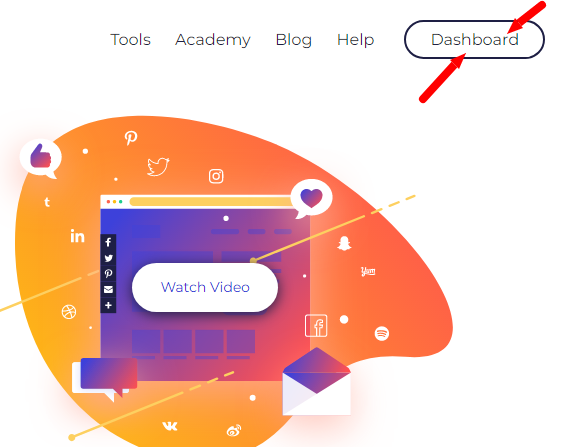
CLICK ON AddThis - DASHBOARD
How To Integrate AddThis Share Button To Your Blogger Site And More - 2022

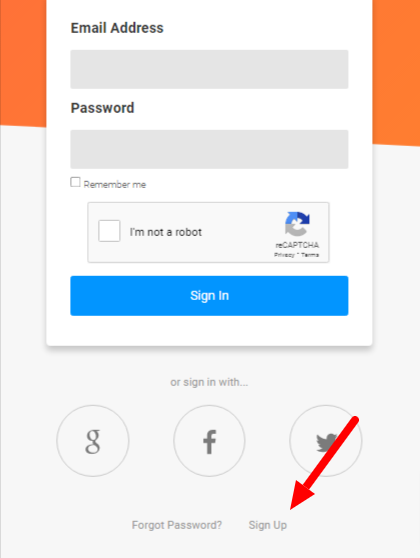
SIGN-UP


How To Integrate AddThis Share Button To Your Blogger Site And More - 2022

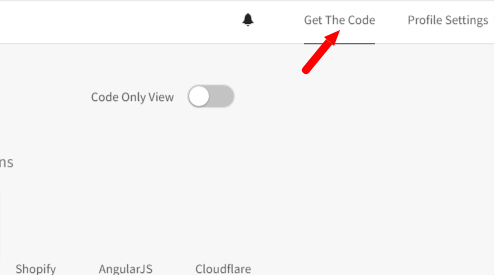
GET CODE

How To Integrate AddThis Share Button To Your Blogger Site And More - 2022

COPY CODE

How To Integrate AddThis Share Button To Your Blogger Site And More - 2022

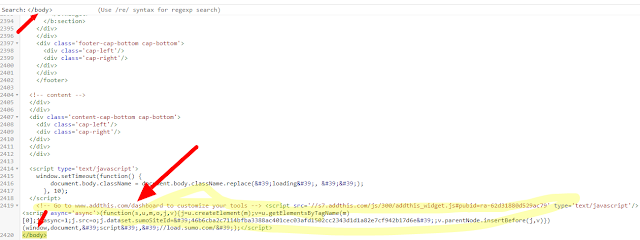
Go to Blogger dashboard and scroll down to theme click on theme and next to the customize button click on the arrow and scroll to EDIT HTML. Push control F within the Html theme and type </body> Tag & click enter the </body> tag appears... Paste the AddThis CODE BEFORE THE BODY </body> tag in the HTML of blogger template... As the picture is shown below. Go to - https://www.blogger.com/

Blogger Blog Spot!


View the vid for further assistance


I hope you found this helpful? Comment below for any additional help!

Thank you for visiting!
Read More »

Sunday, July 3, 2022

Prevent Copy And Paste On Blogger Code - Protect Your Content

Prevent Copy And Paste On Blogger Code - Protect Your Content


Disable Copy Paste In Blogger


Instructions on how to disable copy-paste in Blogger. Protect your content. Follow the 4 easy steps below or watch the video for better guidance. 


Step 1. Once signed in at blogger @ www.blogger.com Click on Layout. 

Step 2. Select Add a Gadget. 

Step 3. Select HTML JAVA/SCRIPT. 

Step 4. In the final step, make sure you title it., add the code provided below & add it in the content area & click save, and you are done. No more copy-paste! You can find this copy-paste code here.

Prevent Copy And Paste On Blogger Code - Protect Your Content


Disable Copy Paste In Blogger Code Below


<script src='demo-to-prevent-copy-paste-on-blogger_files/googleapis.js'/><script type='text/javascript'>
if (typeof document.onselectstart!=&quot;undefined&quot; ) {
document.onselectstart=new Function (&quot;return false&quot; );
} else {
document.onmousedown=new Function (&quot;return false&quot; ); document.onmouseup=new Function (&quot;return true&quot; );
}
</script>

I hope you found this helpful?

Comment below for any additional help!

Thank you for visiting!
Read More »

How To Center The Text Titles In Blogger BlogSpot Gadget 2022

How To Center The Text Titles In Blogger BlogSpot Gadget - 2022


Pretty simple. Simply use this code and paste it into the advanced CSS in the blogger theme.

Use the code below -

.sidebar .widget h2, .title {text-align:center;}

And make sure after pasting the code in the Advance CSS HIT ENTER TWICE AND SAVE!

Center Sidebar Gadget/Widget Titles on Blogger


How To Center The Text Titles In Blogger BlogSpot Gadget 2022

How To Center The Text Titles In Blogger BlogSpot Gadget 2022

How To Center The Text Titles In Blogger BlogSpot Gadget 2022

How To Center The Text Titles In Blogger BlogSpot Gadget 2022
I hope you found this helpful?

Comment below for any additional help!

Thank you for visiting!
Read More »

How To Post Images Side by Side In Blogger BlogSpot 2022

How To Post Images Side by Side In Blogger BlogSpot 2022


Pretty simple to use this code in the HTML. Instruction: Paste this code in the HTML view when creating your posts on Blogger BlogSpot.

  • How do I insert the code? Copy the code below and paste it into the HTML View when creating your post.
  • How to insert the images? Simply right-click on the image your desire and copy the image address and paste it into the "image 1 link here"
Watch Vid For Assistance


Use this table/code below.

<table>
<tr>
<td><img border="0" width="100px" height="100px" src="IMAGE 1 LINK HERE" /></td>
<td><img border="0" width="100px" height="100px" src="IMAGE 2 LINK HERE" /></td>
<td><img border="0" width="100px" height="100px" src="IMAGE 3 LINK HERE" /></td>
</tr>
</table>

HTML VIEW

Example of what it looks like.

How To Post Images Side by Side In Blogger BlogSpot 2022


How To Post Images Side by Side In Blogger BlogSpot 2022
I hope you found this helpful?

Comment below for any additional help!

Thank you for visiting!
Read More »

Saturday, July 2, 2022

How To Add Read More To Each Of Your Blog Posts Automatically On Blogger BlogSpot

How To Add Read More To Each Of Your Blog Posts Automatically On Blogger BlogSpot


Read/follow all the steps below...


With this automatic read-more button that we are going to implement in the blogger theme, it will show the thumbnail image of your post and the post summary as well. 

We are going to look for these HTML codes highlighted in green in this post and look for them in the blogger theme as shown in the image below. You may need to replace all three of them with code highlighted in yellow in this post.

Look for: <data:post.body/>

View Video For Guidance

πŸ‘‡Replace it with the code below πŸ‘‡

<b:if cond='data:blog.pageType != &quot;static_page&quot;'>
<b:if cond='data:blog.pageType != &quot;item&quot;'>
<div expr:id='&quot;summary&quot; + data:post.id'><data:post.body/></div>
<script type='text/javascript'>createSummaryAndThumb(&quot;summary<data:post.id/>&quot;,&quot;<data:post.url/>&quot;,&quot;<data:post.title/>&quot;);</script>
<span class='readmore' style='float:right;'><a expr:href='data:post.url'>Read More &#187;</a></span></b:if></b:if>
<b:if cond='data:blog.pageType == &quot;item&quot;'><data:post.body/></b:if>
<b:if cond='data:blog.pageType == &quot;static_page&quot;'><data:post.body/></b:if>

In the AWESOME INC theme for Blogger that I am using, I only had to change only two of the <data:post.body/>

The other themes may require changing all three <data:post.body/>. Keep this in mind!

Very Important to add the last piece of code shown below to your theme. Right above the <head> tag.


<script type='text/javascript'>
posts_no_thumb_sum = 490;
posts_thumb_sum = 400;
img_thumb_height = 160;
img_thumb_width = 180;
</script>
<script type='text/javascript'>
//<![CDATA[
function removeHtmlTag(strx,chop){
if(strx.indexOf("<")!=-1)
{
var s = strx.split("<");
for(var i=0;i<s.length;i++){
if(s[i].indexOf(">")!=-1){
s[i] = s[i].substring(s[i].indexOf(">")+1,s[i].length);
}
}
strx = s.join("");
}
chop = (chop < strx.length-1) ? chop : strx.length-2;
while(strx.charAt(chop-1)!=' ' && strx.indexOf(' ',chop)!=-1) chop++;
strx = strx.substring(0,chop-1);
return strx+'...';
}
function createSummaryAndThumb(pID, pURL, pTITLE){
var div = document.getElementById(pID);
var imgtag = "";
var img = div.getElementsByTagName("img");
var summ = posts_no_thumb_sum;
if(img.length>=1) {
imgtag = '<span class="posts-thumb" style="float:left; margin-right: 10px;"><a href="'+ pURL +'" title="'+ pTITLE+'"><img src="'+img[0].src+'" width="'+img_thumb_width+'px" height="'+img_thumb_height+'px" /></a></span>';
summ = posts_thumb_sum;
}

var summary = imgtag + '<div>' + removeHtmlTag(div.innerHTML,summ) + '</div>';
div.innerHTML = summary;
}
//]]>
</script>

<b:if cond='data:blog.pageType != &quot;static_page&quot;'>
<b:if cond='data:blog.pageType != &quot;item&quot;'>
<style type='text/css'>
.post-footer {display: none;}
.post {margin-bottom: 10px; border-bottom: 1px dotted #E6E6E6; padding-bottom: 20px;}
.readmore a {text-decoration: none; }
</style>
</b:if>
</b:if>

BLOGGER DASHBOARD
How To Add Read More To Each Of Your Blog Posts Automatically On Blogger BlogSpot

BLOGGER THEME HTML
How To Add Read More To Each Of Your Blog Posts Automatically On Blogger BlogSpot


I hope you found this helpful? Thank you for visiting!

Comment below for any additional help!
Read More »

Center Brackets For Blogger Gadgets 2022 - Blogger BlogSpot

Center Brackets For Blogger Gadgets 2022 - Blogger BlogSpot


Blogger BlogSpot Simple HTML Codes


Center brackets are very easy to implement into the blogger layout. Choose the HTML gadget and use <center> </center> and in between the center brackets paste your code, for instance, the Twitter feed code like this one.

<a class="twitter-timeline" data-height="777" data-theme="dark" data-width="355" href="https://twitter.com/avonrep_online?ref_src=twsrc%5Etfw">Tweets by avonrep_online</a> <script async="async" charset="utf-8" src="https://platform.twitter.com/widgets.js"></script>

Example 1:
<center><a class="twitter-timeline" data-height="777" data-theme="dark" data-width="355" href="https://twitter.com/avonrep_online?ref_src=twsrc%5Etfw">Tweets by avonrep_online</a> <script async="async" charset="utf-8" src="https://platform.twitter.com/widgets.js"></script></center>

Example 2:

<body> 
<center>
    <p>Your centered text goes here</p> 
</center> 
</body>

It's pretty neat to learn the simple HTML codes. I enjoy the simple templates in blogger because I get to learn the basic HTML codes. Overall I do like blogger Blogspot.

Example Images Below

Center Brackets For Blogger Gadgets 2022 - Blogger BlogSpot

Center Brackets For Blogger Gadgets 2022 - Blogger BlogSpot

Center Brackets For Blogger Gadgets 2022 - Blogger BlogSpot

I hope you found this helpful? Thank you for visiting!
Read More »

Tuesday, June 28, 2022

Tutorial/Codes To Use For Old Blogger Templates - 2022

Tutorial/Codes To Use For Old Blogger Templates - 2022


How to put images side by side in blogger posts/pages and how to center the header image. This blog post explains the simple code to implement.

Tutorial/Codes To Use For Old Blogger Templates - 2022

How To Put Images Side by Side In Blogger Posts/Pages


Use this code below.

<table>
<tr>
<td><img border="0" width="100px" height="100px" src="IMAGE 1 LINK HERE" /></td>
<td><img border="0" width="100px" height="100px" src="IMAGE 2 LINK HERE" /></td>
<td><img border="0" width="100px" height="100px" src="IMAGE 3 LINK HERE" /></td>
</tr>
</table>

Instruction: Paste this code in the HTML view when creating posts.

How to center the header by adding it in the advanced CSS


Use this code below.

#header-inner img {width: 100%; margin: 0 auto;}
#header-inner {text-align: center;}


I hope you found this helpful? Thank you for visiting!
Read More »

Popular Posts

How To Connect Squarespace Domain To Blogger Blogspot 2026

How To Connect Squarespace Domain To Blogger Blogspot 2026 πŸ‘€ After hours of searching online for how to connect the Squarespace domain to t...